

How can we help?
Pick what you need help with and we'll show you, step by step, where to tap.
Scanning
Usually the app doesn't have access to the camera. Here's how to turn it on:
- 1Open Settings and search for Frifor.
- 2Tap Frifor in the results.
- 3Turn on Camera.
- 4Go back to Frifor and scan again.
Still not working? Hold the phone 10–20 cm from the barcode, in good light. You can also tap “Enter barcode manually”.
- 1Tap Discover.
- 2Search for the product by name or brand.
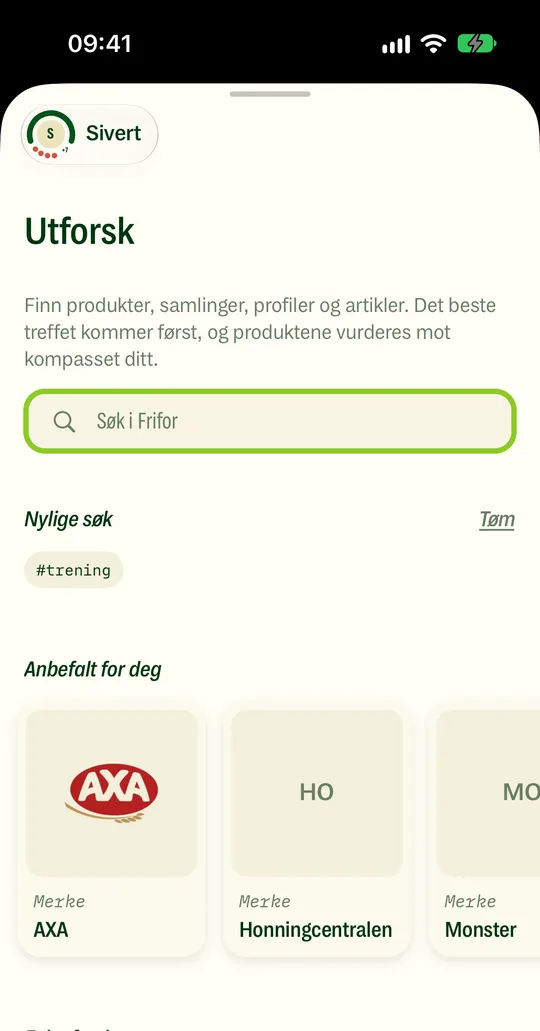
Loose and fresh produce often has no barcode.
The scanner fetches the product online, so you need mobile data or Wi-Fi.
- 1Open Settings and search for Frifor.
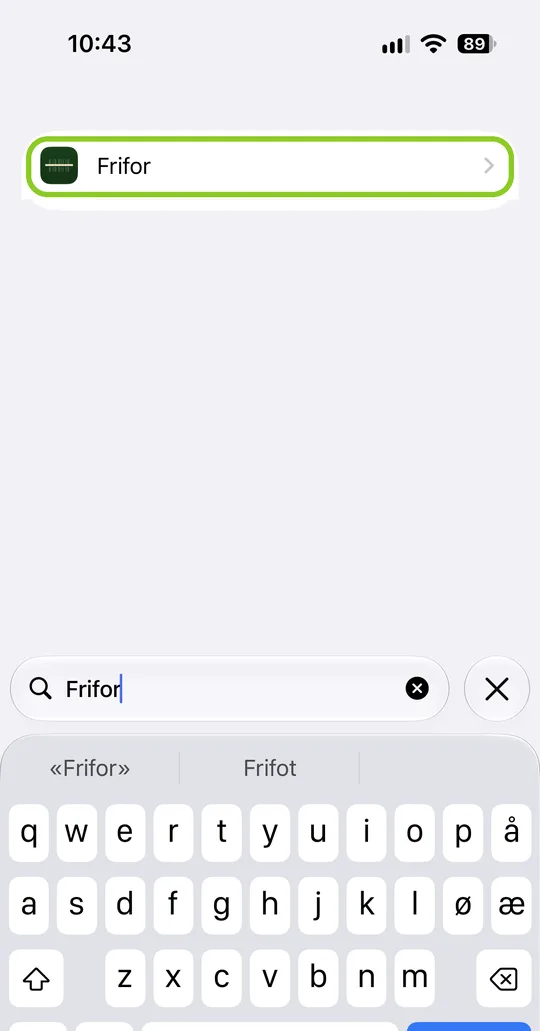
- 2Tap Frifor in the results.
- 3Turn on Mobile Data.
Many stores have poor signal. Try moving closer to the entrance.
Products
If it says “We couldn't find this product”, you can add it yourself:
- 1Tap “Add this product”.
- 2Take a photo of the front of the pack.
- 3Take a photo of the ingredient list.
We read the photos and add the product. It can take a little while before it shows up.
- 1Open the product in Frifor.
- 2Report the error, and write what's wrong.
If you have an allergy, always check the label on the pack. The label is what counts.
- 1Open the product in Frifor.
- 2Report the error, and say which allergen is wrong.
- 3If it's urgent, email us at mail@frifor.app.
The label on the pack is what counts. Always check it if you have an allergy.
The rating is the average of what users have given the product, from 1 to 10.
- 1Open the product.
- 2Scroll down to Ratings to see how many have rated it.
- 3Give your own rating with the slider.
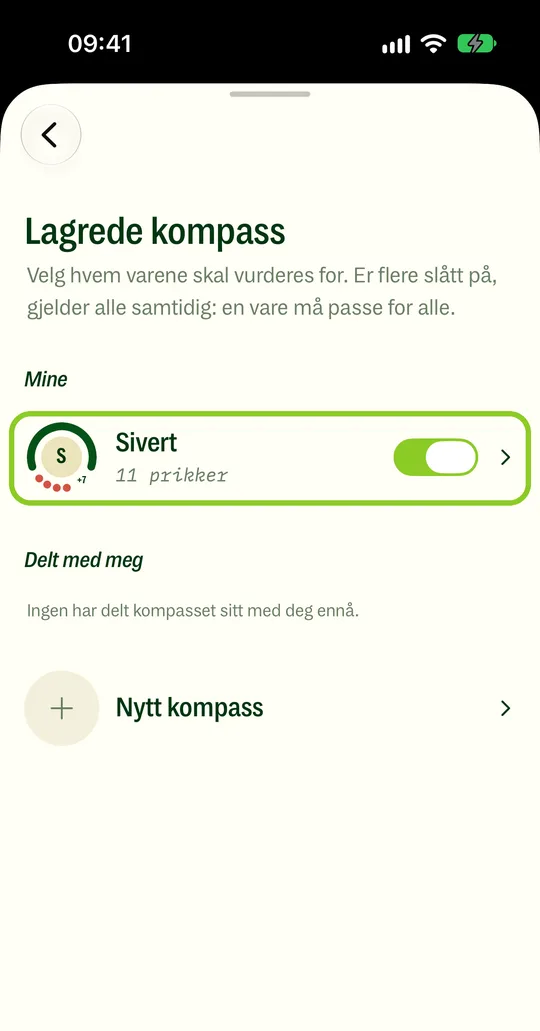
The compass shows how the product fits what you've chosen: what you want more of, less of and never.
- 1Tap your profile picture at the top right.
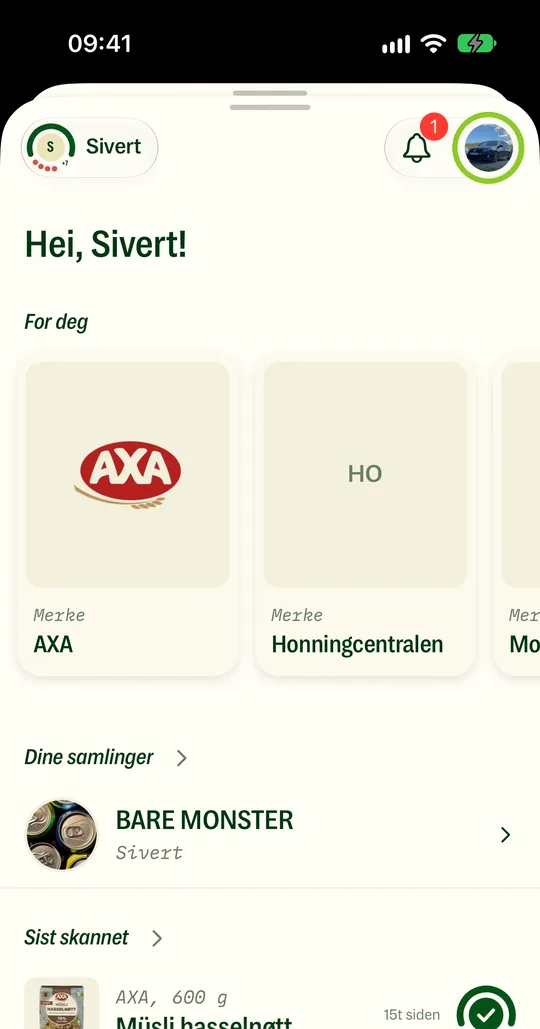
- 2Tap Saved compasses.
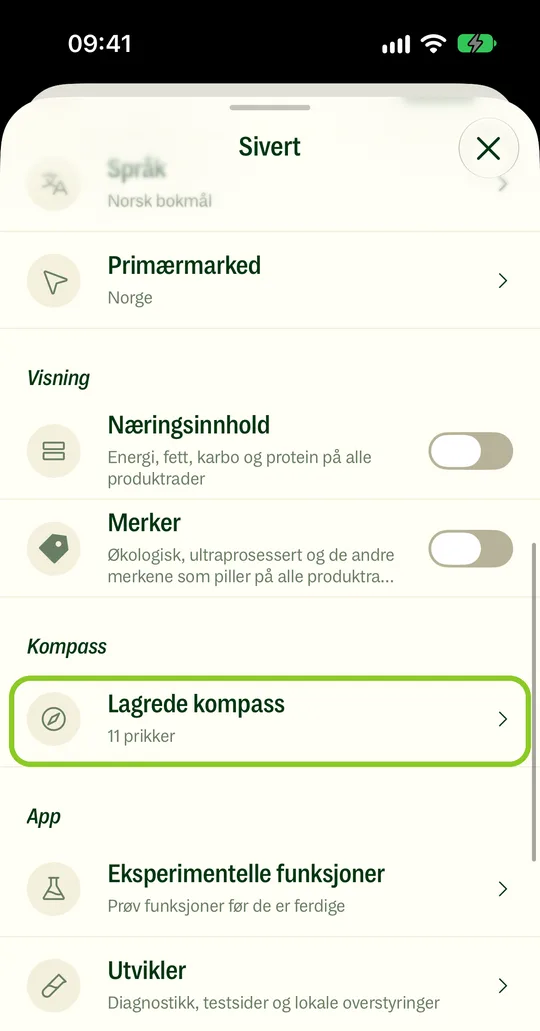
- 3Add or remove dots to change what the compass looks for.
The app
- 1Close the app completely, and open it again.
- 2Update the app.
- 3Restart your phone.
If it still crashes, email us at mail@frifor.app with your phone model and what you were doing.
- 1Check that you're online.
- 2Close the app completely, and open it again.
- 3Update the app.
If it still won't load, email us at mail@frifor.app.
- 1Update the app.
- 2Close apps you're not using.
- 3Restart your phone.
- 1Open the App Store.
- 2Tap your profile picture at the top right.
- 3Scroll down, and tap Update next to Frifor.
- 1Tap your profile picture at the top right.
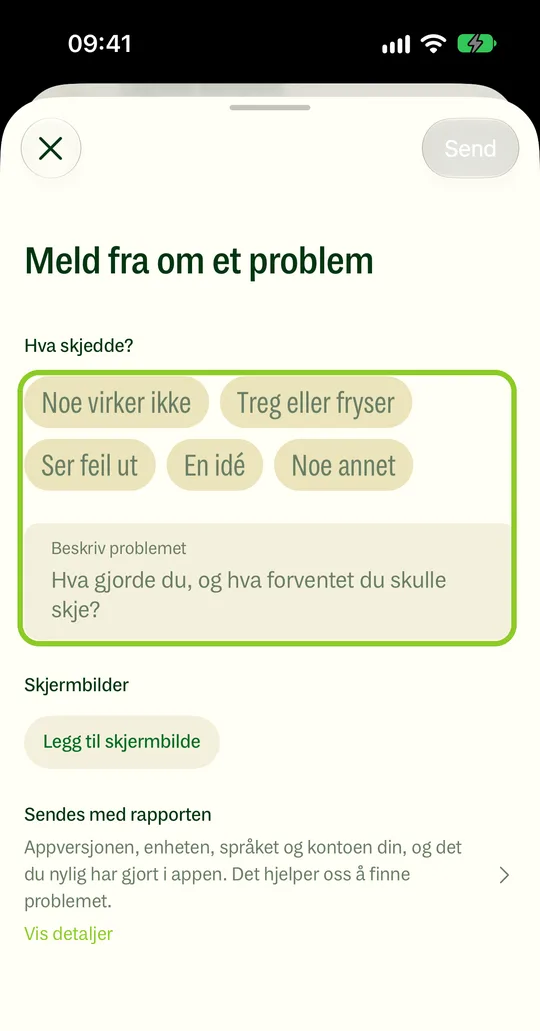
- 2Tap Report a problem.
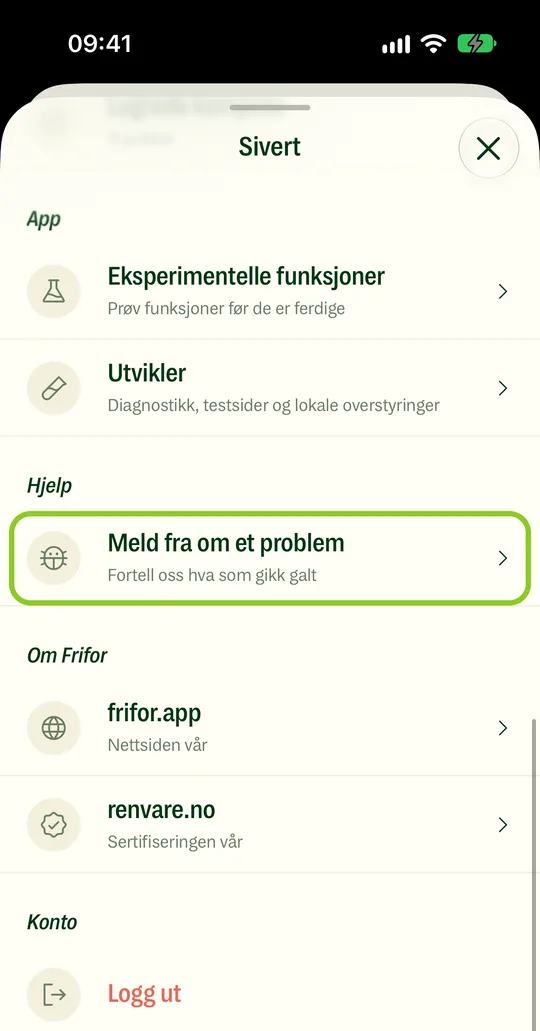
- 3Describe what happened, and add a screenshot if you can.
Signing in
- 1Wait half a minute, and check your spam folder.
- 2Check that the email address you typed is correct.
- 3Tap “Resend code” to get a new one.
Use a passkey. Then you sign in with your face, your finger or your screen lock.
- 1Go to Me › Account › Passkeys.
- 2Tap “Add a passkey”, and confirm with Face ID or Touch ID.
- 1Tap Sign in.
- 2Use the same email address, Apple account or Google account as before.
Your account, collections and Premium are still there.
- 1Try every email address you might have used.
- 2Try Continue with Apple or Continue with Google.
- 3If you still can't get in, email us at mail@frifor.app from the address you think you used.
- 1Tap Sign in.
- 2Tap Continue with Apple or Continue with Google.
- 3Confirm in the window that opens.
Account
- 1Go to Me › Account › Email.
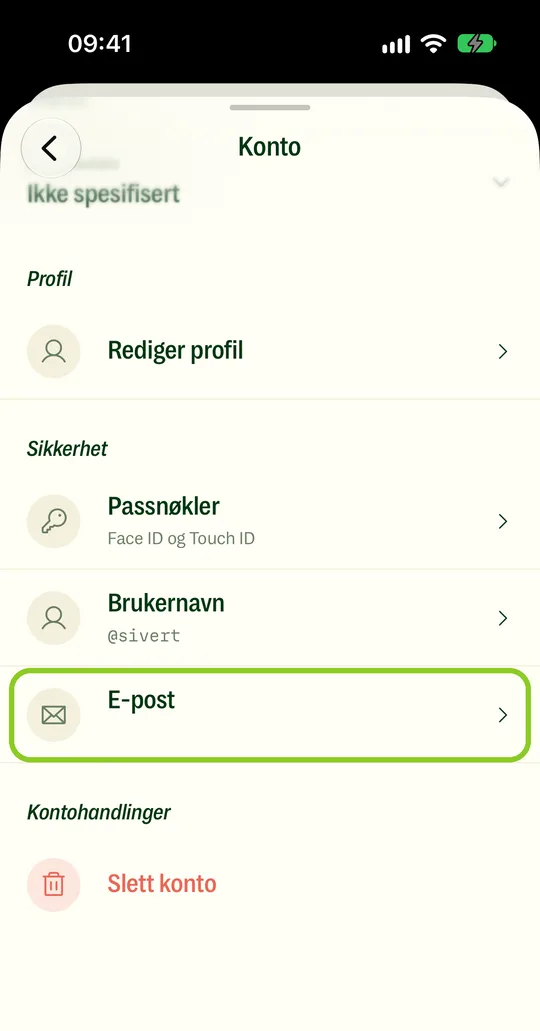
- 2Enter the new address, and tap Send code.
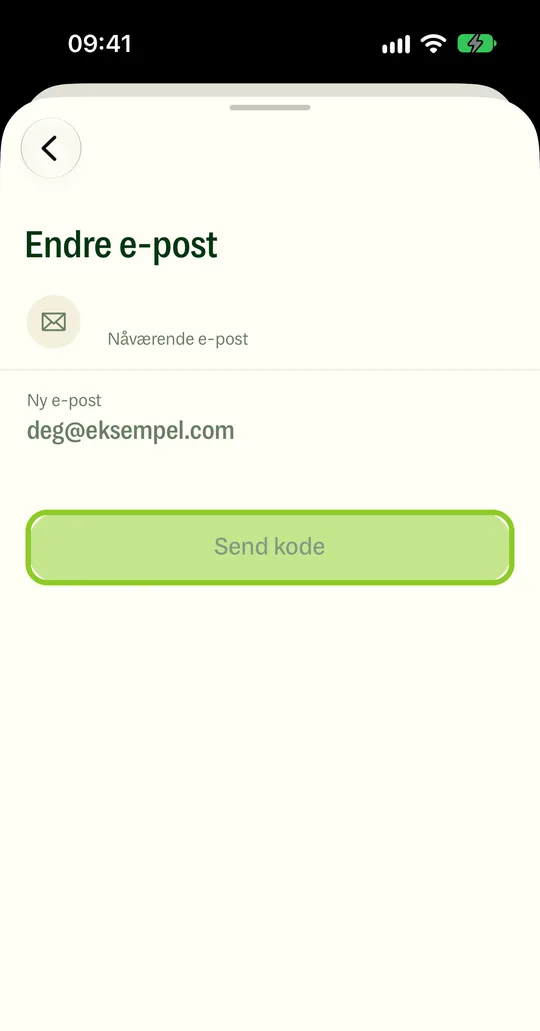
- 3Enter the code we send to the new address, and tap Change email.
- 1Go to Me › Account.
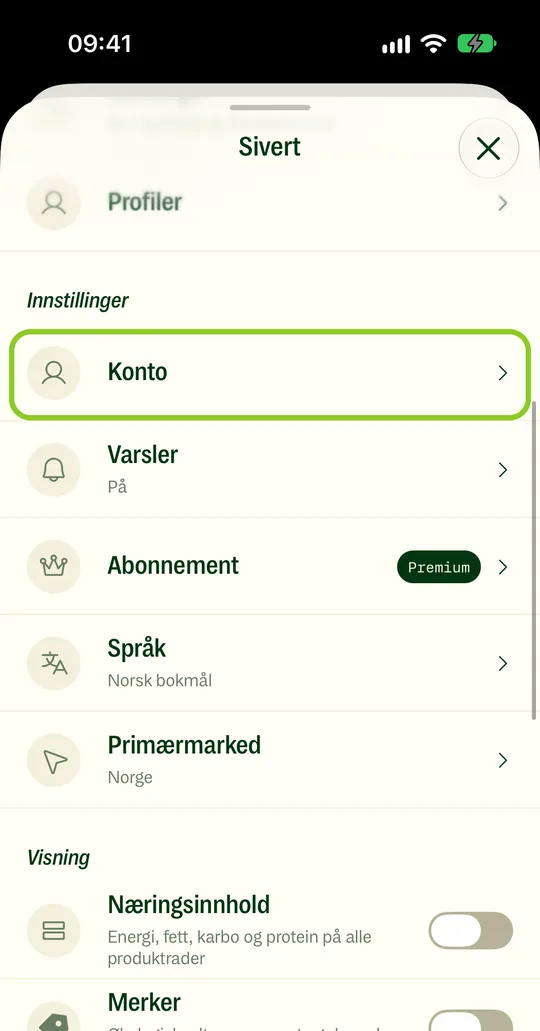
- 2Tap Delete account, and confirm.
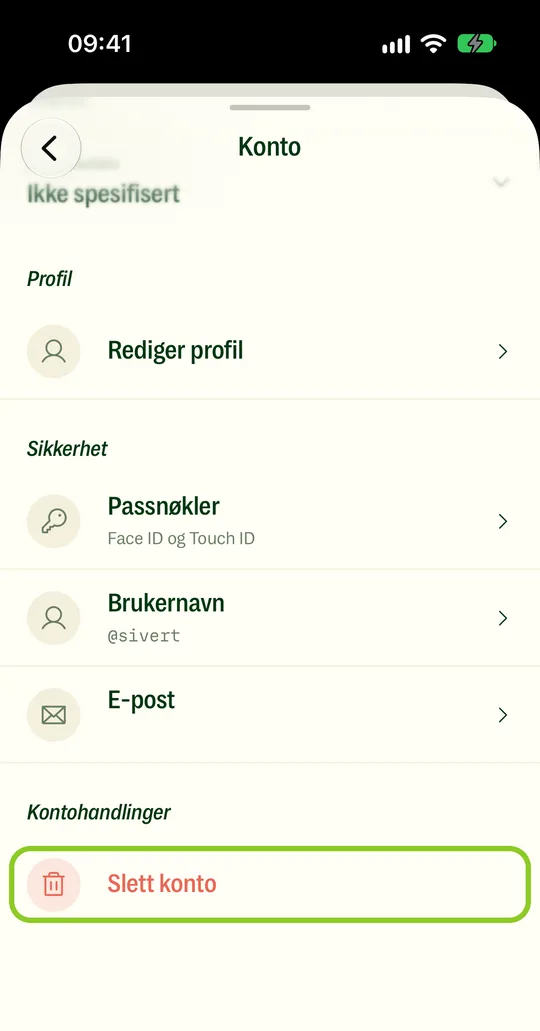
If you have Premium through the App Store or Google Play, cancel it there too.
- 1Email us at mail@frifor.app from the address your account uses.
- 2Say that you'd like a copy of your data.
Collections and profile
- 1Check that you're signed in with the same account as before.
- 2Check that you're online.
- 3Close the app completely, and open it again.
If they still don't show, email us at mail@frifor.app.
- 1Check that you're signed in with the same account as before.
- 2If it's still gone, email us at mail@frifor.app with the collection's name.
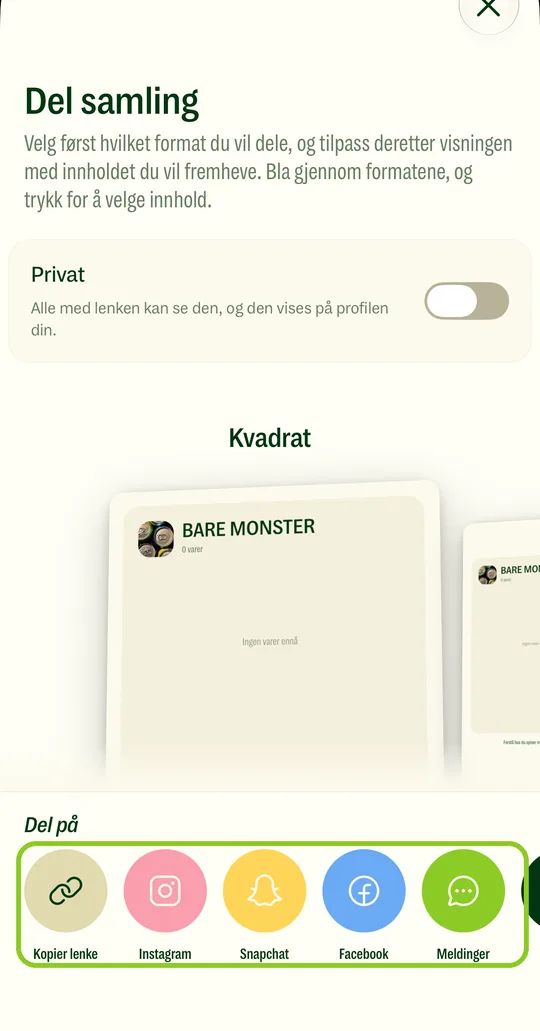
- 1Open the collection.
- 2Tap Share.
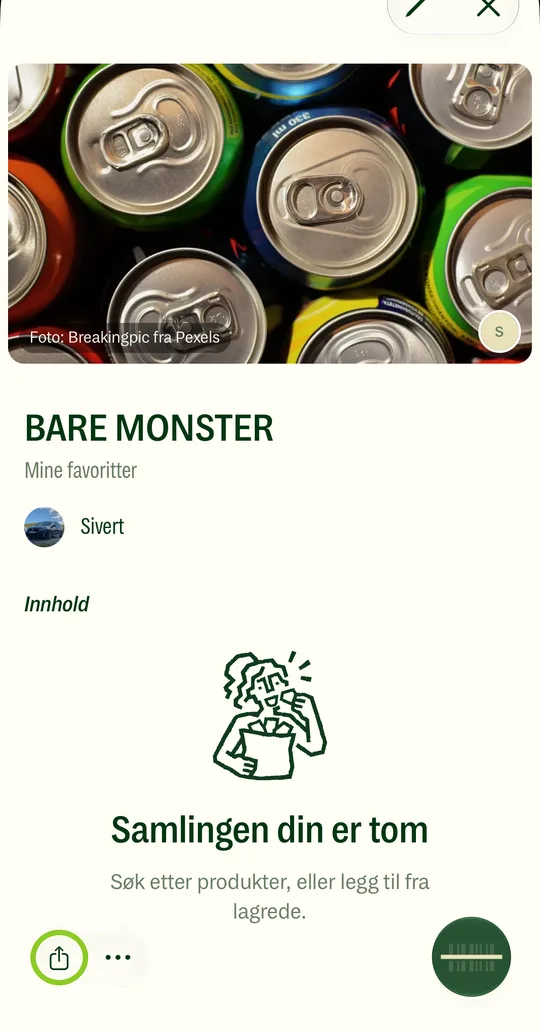
- 3Choose who to send it to.
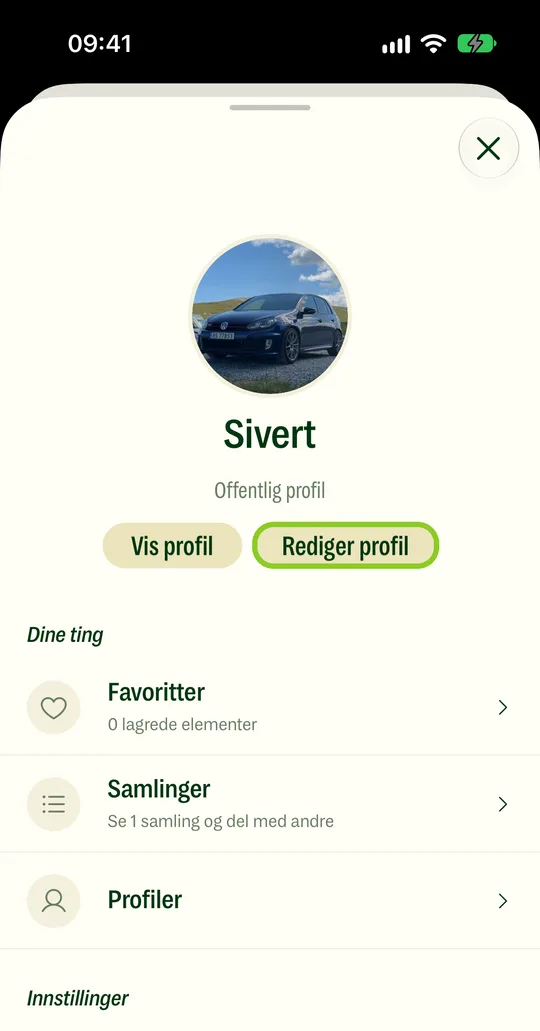
- 1Tap your profile picture at the top right.
- 2Tap Edit profile.
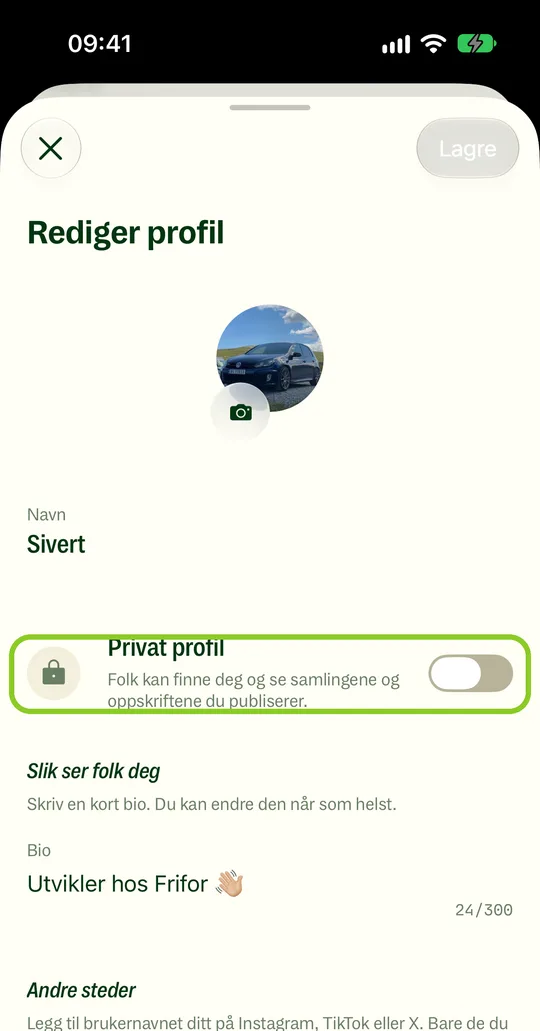
- 3Turn on Private profile, and tap Save.
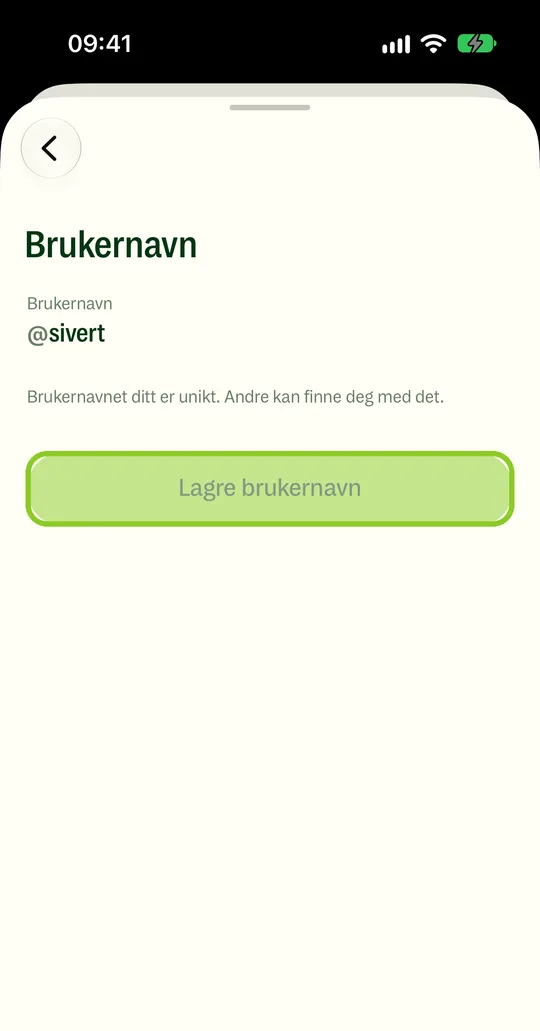
- 1Go to Me › Account › Username.
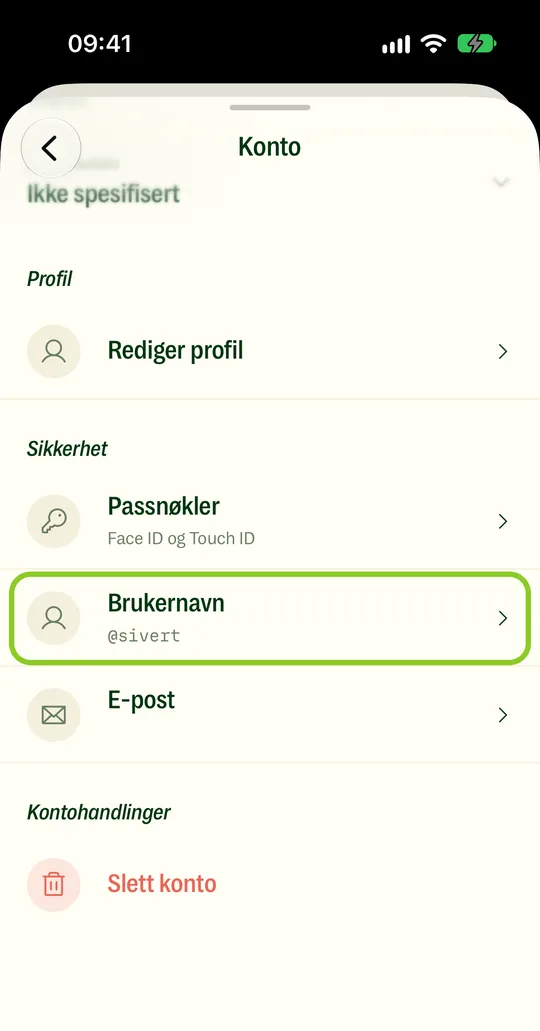
- 2Enter the new username, and save.
If your profile is public, anyone can see your ratings on it. To hide them, make your profile private.
- 1Tap your profile picture at the top right.
- 2Tap Edit profile.
- 3Turn on Private profile, and tap Save.
Premium
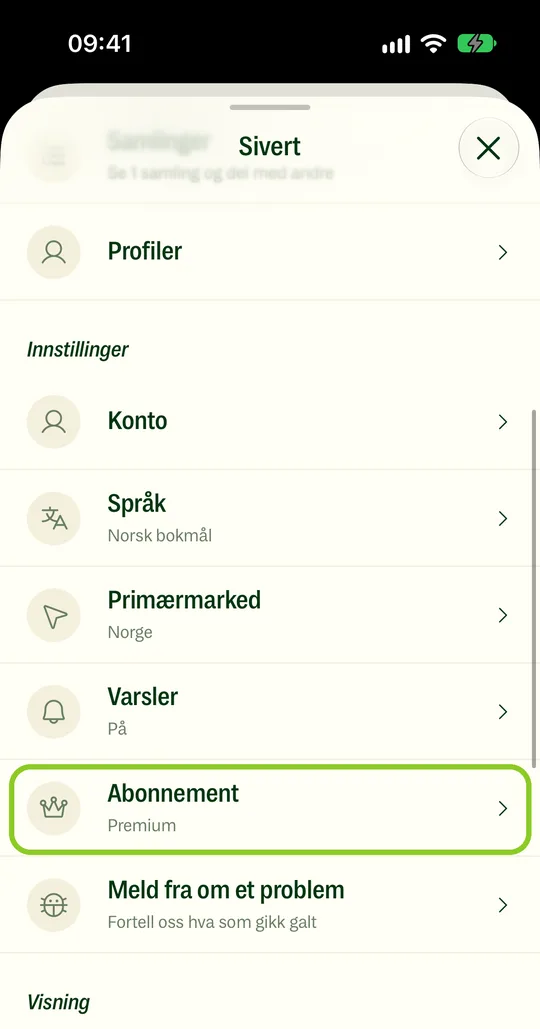
- 1Go to Me › Subscription.
- 2Choose Premium, and confirm the purchase in the App Store.
- 1Sign in with the same account as before.
- 2Go to Me › Subscription.
- 3Tap “Restore previous purchase”.
- 1Open Settings, and tap your name at the top.
- 2Tap Subscriptions, then Frifor.
- 3Tap Cancel Subscription.
Bought Premium on frifor.app? Cancel it there: sign in at frifor.app/premium and tap “Manage subscription”. Premium keeps working until the end of the period you've paid for.
- 1Check that you're signed in with the same account you bought it with.
- 2Go to Me › Subscription.
- 3Tap “Restore previous purchase”.
- 4If that doesn't help, email us at mail@frifor.app with the receipt.
- 1Apple handles refunds for App Store purchases.
- 2Go to reportaproblem.apple.com, and choose the purchase.
If you bought it on frifor.app, email us at mail@frifor.app.
Notifications
- 1Open Settings and search for Frifor.
- 2Tap Frifor in the results.
- 3Tap Notifications.
- 4Turn on Allow Notifications.
- 5In Frifor: go to Me › Notifications, and choose what you want.
Focus or Do Not Disturb can hold notifications back.
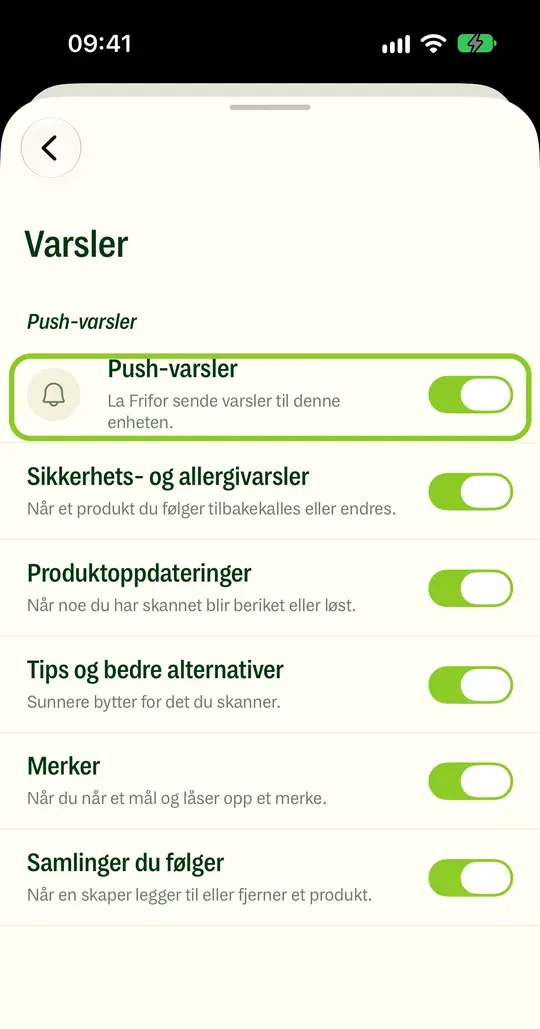
- 1Go to Me › Notifications.
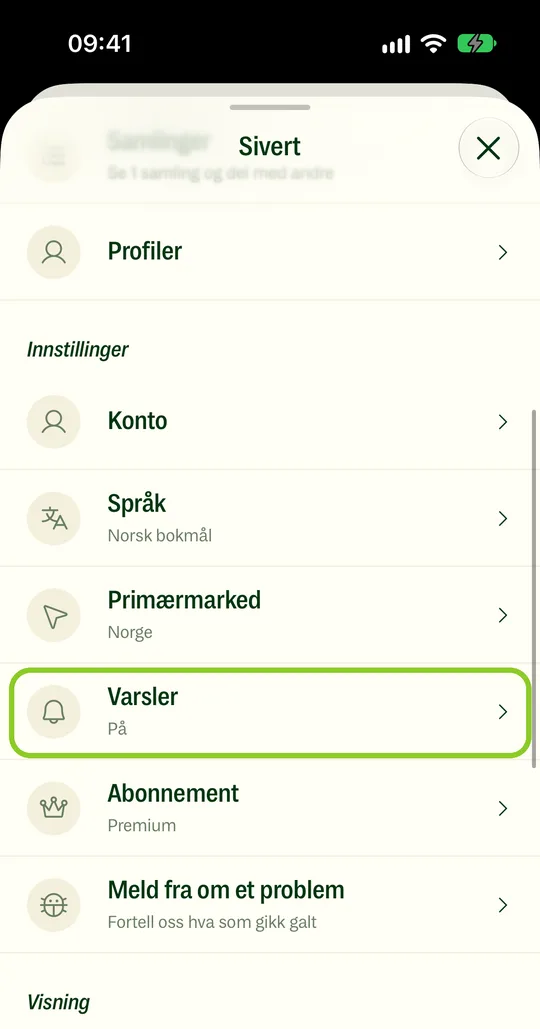
- 2Turn off the kinds you don't want.
Language and market
- 1Tap your profile picture at the top right.
- 2Tap Language or Primary market.
- 3Choose the one you want.
Your primary market is the country you shop in most.
Still stuck?
Report it in the app under Me › Help, or send us an email. Tell us which phone you have.
Send emailmail@frifor.app